Account Email and Verification
Open My Account → Profile Details to see the sign-in email and its Verified or Not Verified badge. The small Change Email ID button is at the right side of the Email ID row for both verified and unverified accounts. Unverified accounts also show Verify Email to confirm the current address. The change request needs your password and any configured authenticator code.
Editor-issued invitations: An unverified reviewer with an active editor invitation must confirm their email before opening the journal dashboard or confidential review materials, even if optional reviewer-pool verification is disabled by the publisher. Follow the verification link sent to your inbox; resend if needed after the cooldown. The confirmation step does not bypass password or 2FA authentication.
Accepting a review
- Open the invitation and sign in with the account associated with the invitation.
- Review the article topic, deadline and any conflict of interest. Accept only if you can provide an independent, timely review; otherwise decline.
- Accepted assignments provide access to the reviewer workspace and permitted manuscript files. Contact the editorial office if required material is unavailable.
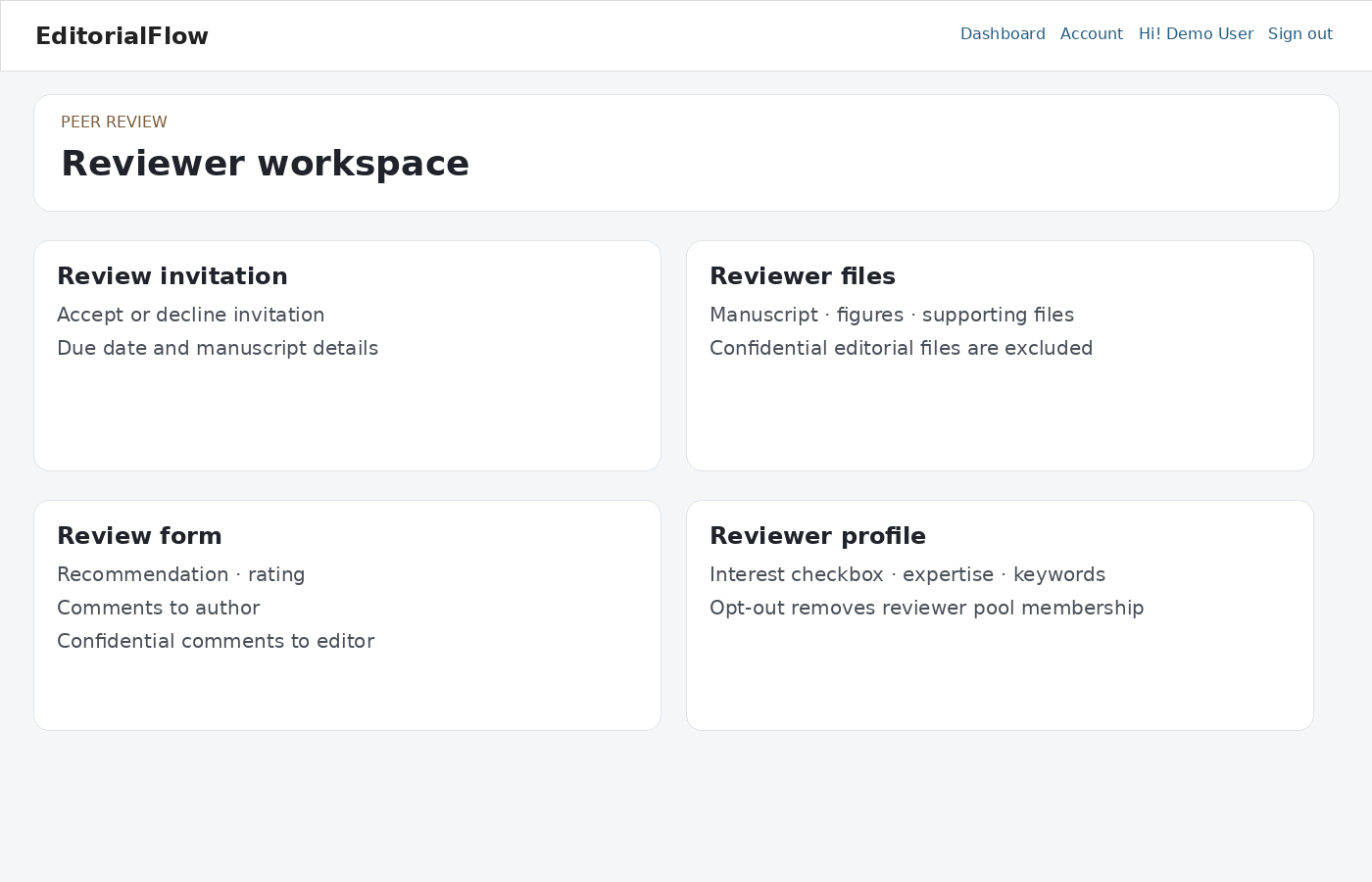
Preparing and submitting your report
Read the manuscript and complete the journal’s review form. Distinguish comments intended for the author from confidential comments for the editor. Choose the recommendation and add permitted attachments. Review your report before submission; do not assume a submitted review can be edited.
Revisions and certificates
Review invitations are tied to manuscript versions. An older invitation cannot be used to review a newer version. Use the new invitation when re-review is requested. A reviewer certificate is available only when the journal’s configured rules and assignment status allow it.
Recognised Reviewer Certificate — Version 2.5.2
After you submit a review and the assignment reaches Completed, open the journal dashboard and locate Recognised Reviewer Certificate. Each completed review shows only View Certificate and Download Certificate.
- Choose View Certificate to inspect the journal's active certificate design, reviewer name, manuscript title, manuscript ID, review date and certificate reference.
- The certificate view page provides Back to Dashboard and Download Certificate. The certificate artwork itself has no extra print or HTML-download buttons.
- Choose Download Certificate to create and download the one-page A4 landscape certificate directly in your browser from the active journal HTML/CSS/SVG design.
The journal may upload its own certificate template. The Preview in Journal Settings, reviewer view and downloaded certificate use that active design. Only your completed-review certificates and records authorized for editorial staff are accessible.
Account and security
Keep expertise, ORCID and reviewer keywords current. The reviewer-interest preference affects discoverability, while editors may still assign appropriate reviewers. Use My Account & Security to configure two-factor authentication.
Confidentiality
Do not share manuscript files or review correspondence outside the authorized review process. Contact the editor about conflicts, missed deadlines or suspected research integrity issues.
Email verification and phone numbers
See Email Verification & Phone Numbers for publisher policies, verification messages, pending email changes and phone country selection.