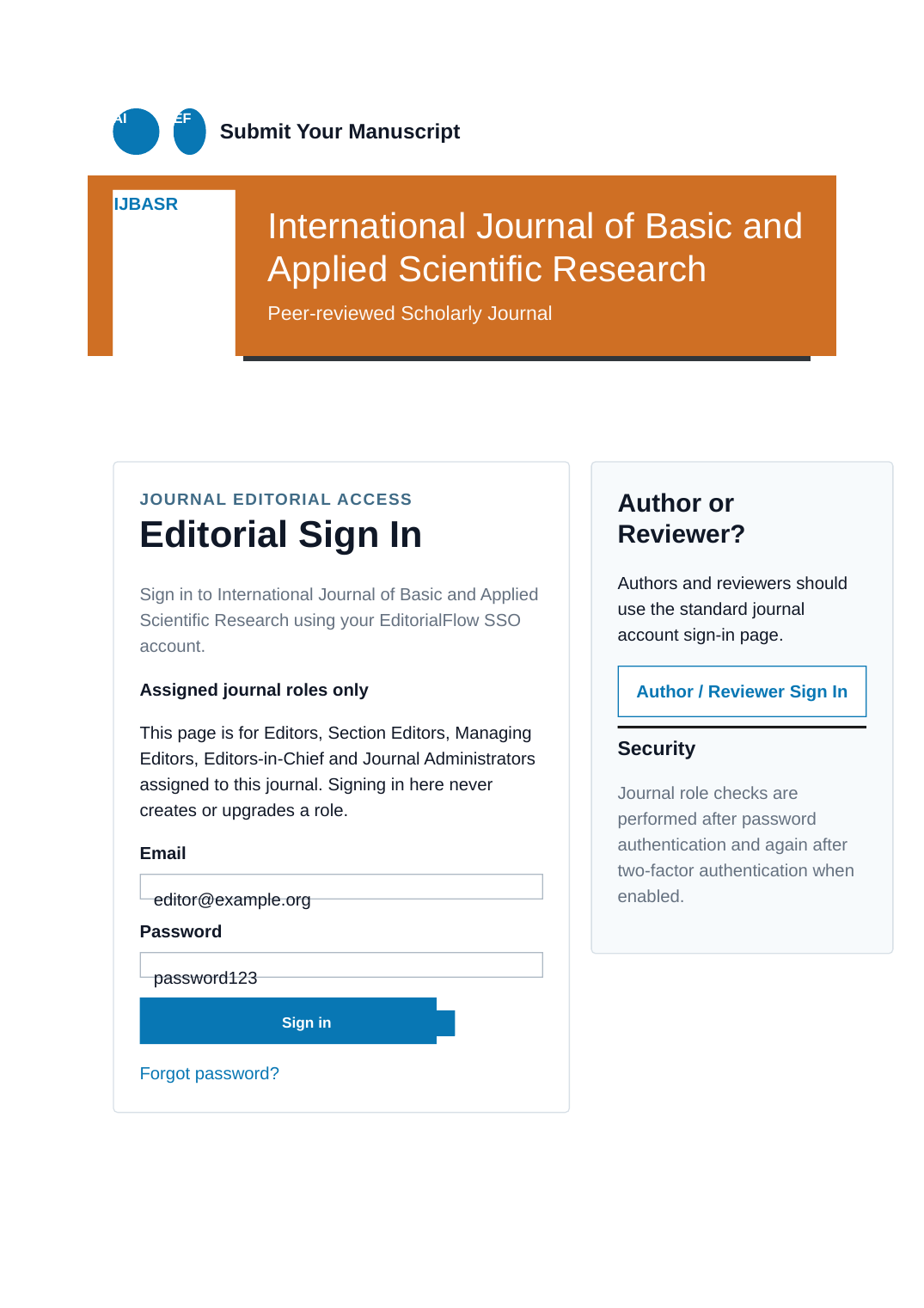
Editorial Sign In page
The dedicated journal staff page is titled Editorial Sign In. It remains limited to active Editor, Section Editor, Managing Editor, Editor-in-Chief and Journal Administrator memberships. The configured slug still belongs to each journal and the footer visibility setting still controls only whether the public Editorial Login link is displayed.
Automatic login URLs in email
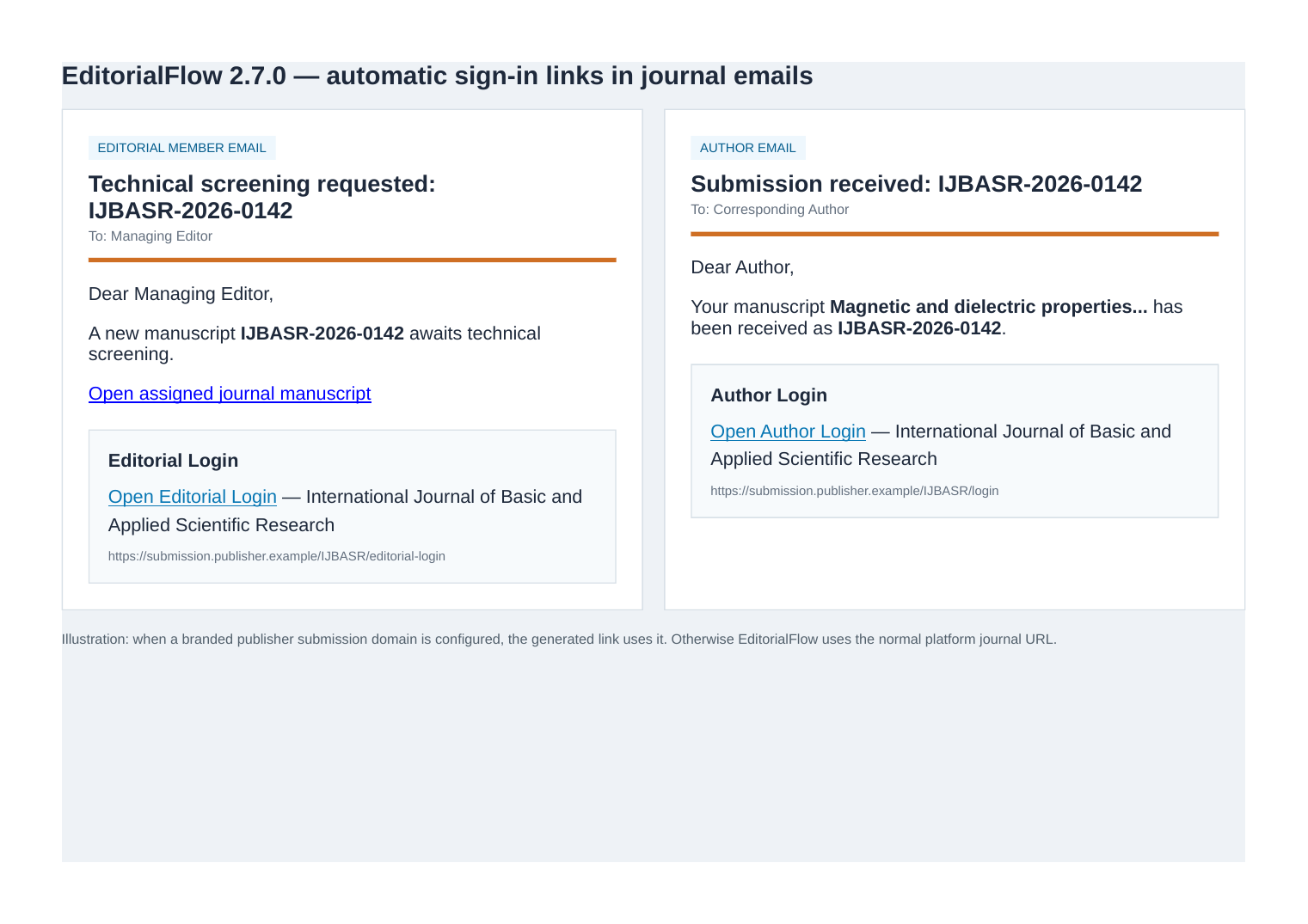
Journal workflow messages now append a small sign-in block after the configured email body. This is automatic and does not require a journal administrator to add a placeholder to every existing template.
| Recipient context | URL added | Routing |
|---|---|---|
| Editor, Section Editor, Managing Editor, Editor-in-Chief or Journal Administrator | Editorial Login | Uses the journal’s configured editorial login slug. |
| Submitting author / author workflow recipient | Author Login | Uses the journal’s normal /login page. |
Branded-domain rule: if the publisher has a configured branded submission domain, EditorialFlow generates the sign-in URL on that domain. If not, the normal platform journal URL is generated. The destination comes from saved journal/publisher configuration rather than request headers or email-body content.
Mixed-role accounts
One SSO account may hold more than one journal role. For a manuscript email addressed to that manuscript’s submitting author, the Author Login takes priority. Editorial workflow notifications generated for assigned editorial users use Editorial Login. Reviewer-only invitations keep their existing invitation/review route and are not converted into an author login message.
Security behaviour
- The automatic block does not grant a role and does not bypass the normal journal role check, verified-email requirement or two-factor authentication.
- The editorial login URL is produced from the saved journal slug and publisher domain configuration, not a user-supplied URL.
- URLs are HTML-escaped before insertion. The block is added only for the allowed modes
authorandeditorial. - If a customized email body already contains the exact generated login URL, EditorialFlow does not append a duplicate block.
- Correspondence logging stores the same body that is handed to the mail transport for workflow emails updated by Version 2.7.0.
Journal Administrator check after upgrade
- Open Journal Settings → Roles & Users and confirm the editorial login slug.
- Open the dedicated URL and confirm the heading reads Editorial Sign In.
- Send a representative editorial assignment email and confirm the Editorial Login block points to the staff URL.
- Send a representative author message, such as a submission receipt or payment/copyright notice, and confirm the Author Login block points to the journal
/loginURL. - If a branded domain is configured, verify both links use that domain.
Operational note: email delivery, DNS, SMTP and branded-domain resolution depend on the production server. Run one staging or low-risk test message for each recipient type after deployment.